See SoundLine
in Action
Eight step-by-step walkthroughs of the SoundLine portal — the dashboard, voicemail, users, phone menus, extension classes, number porting, call forwarding and departments. Click any demo to see exactly how it works.

SoundLine Dashboard (short version)
This is an overview of SoundLine Communications portal dashboard that functions as a centralized command center designed to simplify the management of intricate business phone systems. This platform eliminates technical hurdles by offering an intuitive interface where administrators can easily adjust user permissions, handle voicemails, and organize departmental queues. To enhance the user experience, the software features customizable visual themes and a guided onboarding process to reduce the typical learning curve. Beyond basic management, the system provides robust analytics that translate call traffic and volume into actionable data for company growth. By streamlining these complex communication tasks, the tool aims to provide businesses with a distinct competitive advantage.
Watch Demo on YouTubeHow to set up and manage voicemail
This tutorial explains how to effectively configure and manage voicemail systems within the SoundLine Communications portal. Users can establish individual or general mailboxes by assigning unique names, extension numbers, and email notification addresses. The platform allows for significant customization, including the ability to generate secure passwords and enable automated transcriptions for incoming messages. To ensure a professional caller experience, the system provides text-to-speech tools to create tailored greetings for various scenarios like vacations or busy signals. Businesses can streamline their communication and ensure messages are organized by specific teams or locations. All modifications, from security updates to greeting adjustments, are easily handled through the centralized management interface.
Watch Demo on YouTube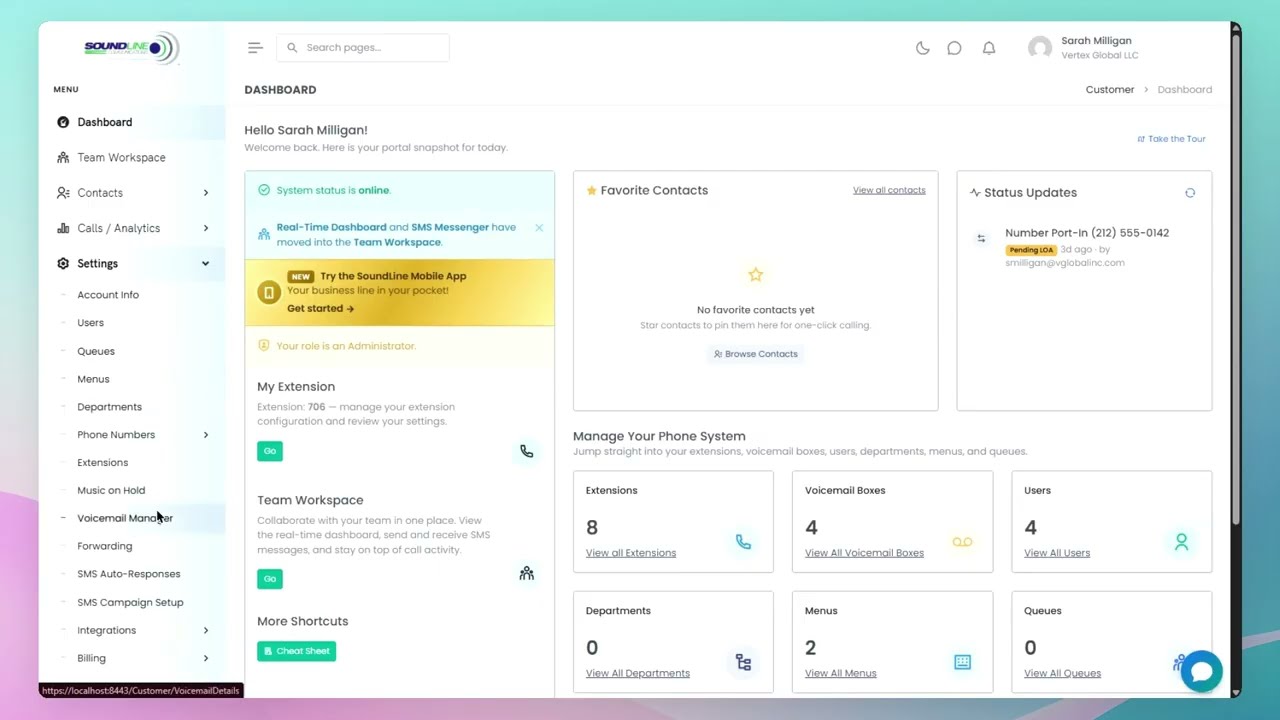

How to manage users in SoundLine portal
This is a comprehensive guide for navigating the user management features within the SoundLine Communications portal. Administrators can efficiently organize their staff by adding new members, assigning specific extensions, and defining access permissions through various roles. The system also allows for real-time updates to existing profiles, including the ability to promote employees or modify their resource allocations. For team transitions, the portal includes tools to deactivate accounts while maintaining the option to restore access from a historical archive if necessary. Finally, the documentation highlights reporting capabilities, such as exporting the entire directory to a CSV file for external record-keeping.
Watch Demo on YouTubeHow to set up phone menus
This guide outlines the process of configuring customized phone menus through the SoundLine Communications portal. The demo shows how to organize incoming calls by assigning specific extensions, staff members, or directories to numeric keypresses. The instructions emphasize the utility of a text-to-speech tool to generate professional audio greetings without the need for external recording equipment. Additionally, how to implement after-hours routing, ensuring callers are directed to appropriate voicemail boxes or emergency operators during closing times.
Watch Demo on YouTube

How to manage extension classes and users
In this video administrators can learn how to create and manage extension classes and manage users by location or department to ensure accurate time zones and caller ID displays. The guide also covers the process for onboarding new users by assigning them unique identification numbers and specific ring settings. Beyond initial setup, the system allows for ongoing management, enabling leaders to edit individual user profiles or search through the directory. These tools are designed to streamline call routing and maintain an orderly communication structure as a company grows.
Watch Demo on YouTubeHow to port phone numbers to SoundLine
This instructional guide details the systematic process for transferring existing phone numbers in the SoundLine Communications portal. Users begin the procedure within the account settings by verifying the portability of their specific numbers and selecting their preferred SMS capabilities. The process requires the submission of business credentials, current carrier account details, and a chosen activation date to ensure minimal service disruption. To finalize the request, an authorized representative must digitally sign a Letter of Authorization and agree to a one-time service fee. Once the current provider grants approval, the numbers are integrated into the new system for immediate use.
Watch Demo on YouTube

How to manage call forwarding
This guide explains how to navigate the SoundLine Communications portal to manage call forwarding for a business team. Users can access the forwarding manager through the settings menu to view a complete list of staff extensions. The interface allows for filtering and sorting based on active status, names, or missing phone numbers to streamline administrative tasks. Toggling forwarding is a simple process, requiring only a quick status switch or the entry of a new destination number. For larger organizations, the search functionality and bulk management tools ensure that no team member misses an incoming call.
Watch Demo on YouTubeHow to set up and manage departments
This instructional guide explains how to configure and organize company departments within the SoundLine Communications portal. It outlines the essential steps for establishing specific teams, such as sales and support, by assigning them unique extension numbers and caller ID prefixes. Users can manage automated call routing by setting up customized schedules, holiday rules, and dedicated voicemail boxes. The video also highlights the process of forming ring groups, which allows multiple team members to handle incoming inquiries based on defined timing durations. Finally, it demonstrates how to integrate these departments into a main phone menu to ensure callers are directed to the correct destination.
Watch Demo on YouTube